
There is a conversation that repeats itself every single time a company loses data in Microsoft 365. It opens with “but everything is in the cloud” and it ends with the discovery that nobody ever configured any backup at all.
The confusion is understandable. When you move the company’s files and email to Microsoft, it seems reasonable to assume that Microsoft now takes care of everything. It does take care of a great deal — just not the part that hurts most when it fails.
What Microsoft actually guarantees
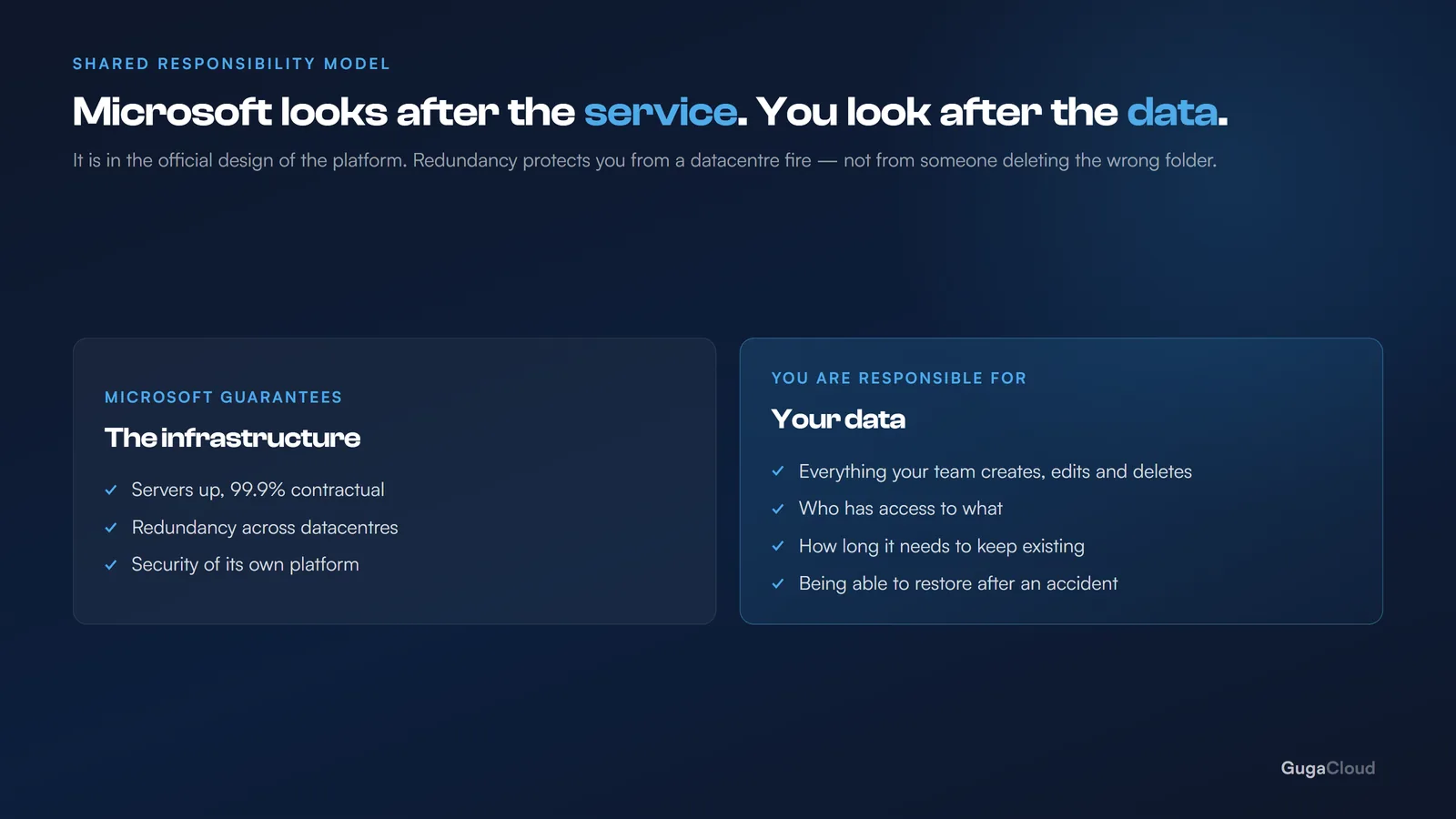
Microsoft works with a concept called shared responsibility. The dividing line is simple: Microsoft answers for the infrastructure, you answer for the data.
In practice, Microsoft guarantees that:
- the servers stay up, with a contractual availability of 99.9%;
- there is redundancy across datacenters, so the service survives a fire or a power failure;
- the platform is protected against intrusion at its own layer.
And you answer for:
- your data — everything your team creates, edits and deletes;
- who has access to what;
- retention — how long things need to keep existing.
Microsoft documents this openly in the shared responsibility model for cloud computing. This is not fine print buried somewhere: it is the official design of the service. The line that sums it up is that information and data remain always the customer’s responsibility, in every cloud model.
Redundancy is not backup. Redundancy protects you from the datacenter catching fire. Backup protects you from someone deleting the wrong folder.
The four ways to lose data that redundancy does not cover
1. Someone deleted it
By far the most common, and almost never malicious. A shared folder that disappears, an important email removed during a mailbox cleanup, a document overwritten with the wrong version.
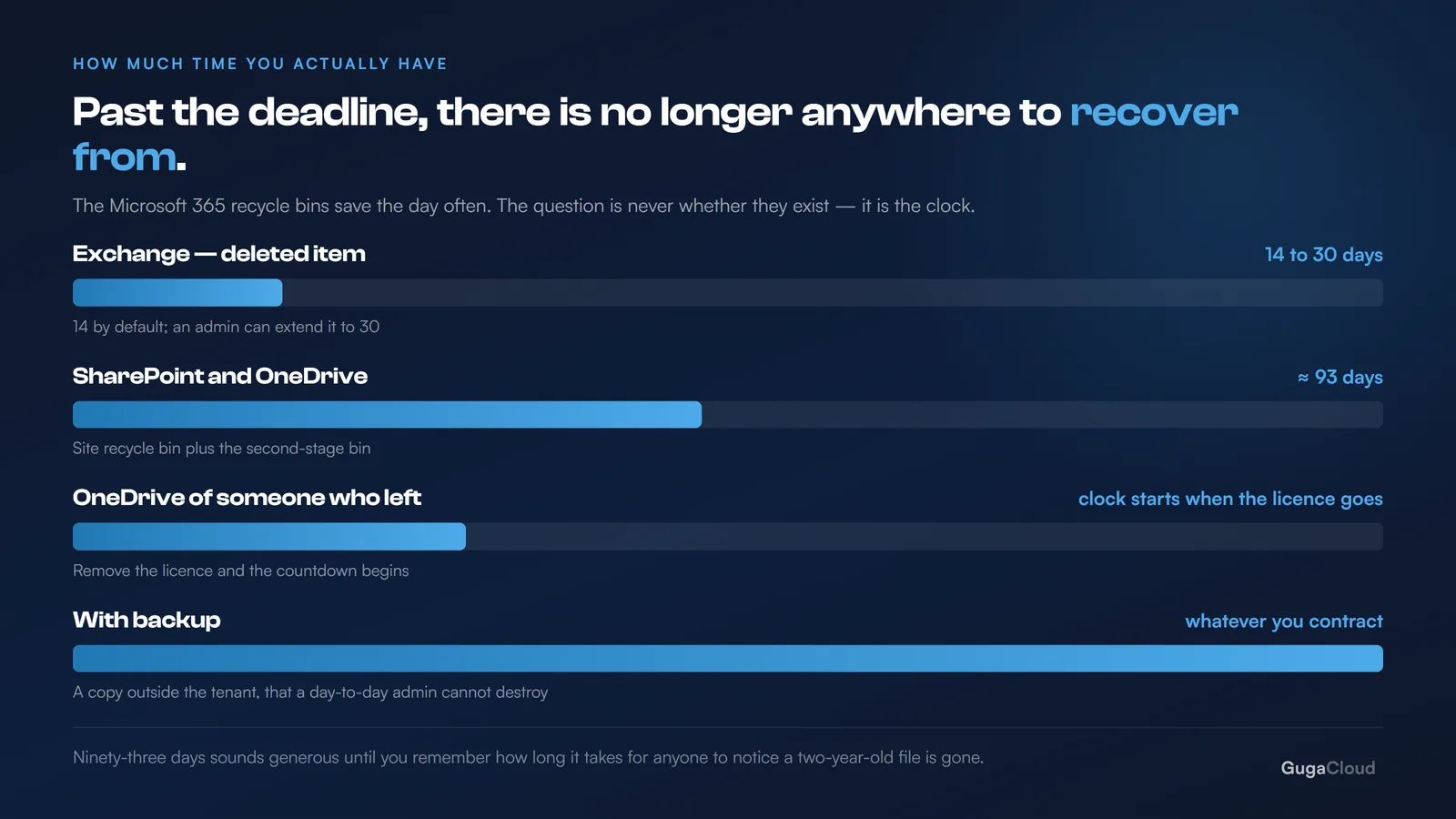
Microsoft 365 has recycle bins, and they save the day often. The problem is the clock. In Exchange Online, a deleted item stays recoverable for 14 days by default, extendable to a maximum of 30. In SharePoint and OneDrive, content passes through the site recycle bin and then the second-stage recycle bin, adding up to roughly 93 days before it is gone for good.
Ninety-three days sounds generous until you remember how long it takes for someone to notice that a file from 2024 went missing.
2. The person left the company
When an employee is offboarded and their license is removed, the mailbox enters a grace period and is then deleted. Their personal OneDrive follows the same path.
If the salesperson who left had two years of client negotiation history in OneDrive, that history has an expiry date starting the day the license was cancelled.
3. Ransomware
Modern ransomware does not stop at the local computer. It uses the person’s credentials, reaches the synced OneDrive and encrypts the files in the cloud — which then obediently sync the encrypted version out to everyone else.
Version history helps, but only if the attack is discovered quickly and the clean versions are still inside the retention window.
4. Someone deleted it on purpose
This is the scenario nobody likes to consider, and precisely the one that most justifies independent backup: a disgruntled administrator, or a compromised admin account, has the power to delete entire mailboxes and empty the recycle bins.
Good backup is the kind your day-to-day administrator cannot destroy.
“But I turned on retention — isn’t that enough?”
Retention and backup solve different problems, and this is probably the most expensive confusion in Microsoft 365.
| Retention / Compliance | Backup | |
|---|---|---|
| What it is for | Stopping something from being deleted before a legal deadline | Restoring what was lost |
| Who designed it | Legal, for audit purposes | IT, for continuity |
| Restoring 400 files from one folder | Manual process, item by item | A restore operation |
| Survives a malicious admin | Depends how it was configured | Yes, if it lives outside the tenant |
| Timeframe | Whatever the policy defines | Whatever you contracted |
Microsoft Purview retention policies are excellent at what they set out to do: guarantee that a piece of data exists for as long as the law requires. They were not designed to quickly hand back the folder structure of an entire department after an accident.
What a decent backup policy includes
If you are going to buy or configure Microsoft 365 backup, these are the points that genuinely matter:
-
Full coverage. Exchange (email, calendar, contacts), OneDrive, SharePoint and Teams — including channel files and conversations. Teams is the one most often forgotten, because its data lives scattered between SharePoint and Exchange.
-
Retention that makes sense for your industry. Accounting and healthcare usually need years. An agency may be fine with 12 months.
-
A copy outside the tenant. If the backup lives inside the same Microsoft tenant, it shares the tenant’s fate. Compromise the global admin account and you compromise both.
-
Granular restore. It has to be possible to bring back a single email or one specific folder, without restoring the whole mailbox on top of today’s work.
-
Restore testing. A backup that has never been restored is an assumption, not a guarantee. Once a quarter, restore something for real.
The calculation that decides it
The practical question is simple: what would it cost your company to be without the last six months of its data?
Add up the rework, the contracts you could not evidence, the lost proposals, the hours your team would spend rebuilding whatever could be rebuilt. Compare that with the cost of a backup solution — which usually sits in the range of a few dollars per user per month.
In most of the companies we work with, the comparison is not close. It is glaring.
Where to start
If you cannot say, right now, whether your company has Microsoft 365 backup, the answer is probably no — because the people who have it know they have it.
Three questions to put to your IT team or your provider today:
- What exactly is being copied: email, OneDrive, SharePoint and Teams, or only part of it?
- How long are the copies kept?
- When was the last time someone restored something for real, just to test it?
If those three answers do not come back fast and specific, it is worth a conversation.