
Of everything a small company can do about its security, one measure stands so far above the rest that there is barely an argument left to have: require a second verification step when people sign in.
The arithmetic is simple. Most successful attacks on small companies involve no sophisticated technique at all. They involve a password that leaked somewhere else — a shopping site, an old forum, a supplier’s portal — and that the person had reused at work. Attackers buy those lists cheaply and try them in bulk against business email. With a second step in place, the password on its own is worth nothing.
Understanding that was never the problem. The problem is switching it on without turning Monday morning into a mess.
What may already be switched on
Before you plan anything, check one thing: Microsoft 365 security defaults are switched on in new tenants, and they already require MFA from every user.
If your environment was created in the last few years and nobody turned anything off, there is a fair chance you already have MFA. It takes a couple of minutes to confirm in the Microsoft Entra admin center, and it is worth confirming before you “roll out” something that is already running.
If the tenant is older, or if somebody disabled it at some point to get past one specific problem and never switched it back on, then yes — there is work to do. That second case is more common than it sounds, and the person who turned it off has usually left.
The two ways to require MFA
Microsoft gives you two routes, and which one fits depends on your plan. The difference is set out in the multi-factor authentication documentation for business.
Security defaults. Available on any plan, Basic included. They turn MFA on for everybody, under the same conditions, with no exceptions and no nuance. It is a switch, not a project.
Conditional Access. Requires Entra ID P1, which is included in Business Premium. It lets you write rules instead of flipping a switch: require MFA only from outside the office network, block sign-ins from countries where you have nobody, allow access only from a registered device.
For most small companies, security defaults are enough. Conditional Access earns its place when there is remote work, personal devices, or somebody with access to money — the full reasoning is in Business Basic, Standard or Premium.
Security defaults switched on beats Conditional Access that was carefully planned and never deployed, every single time.
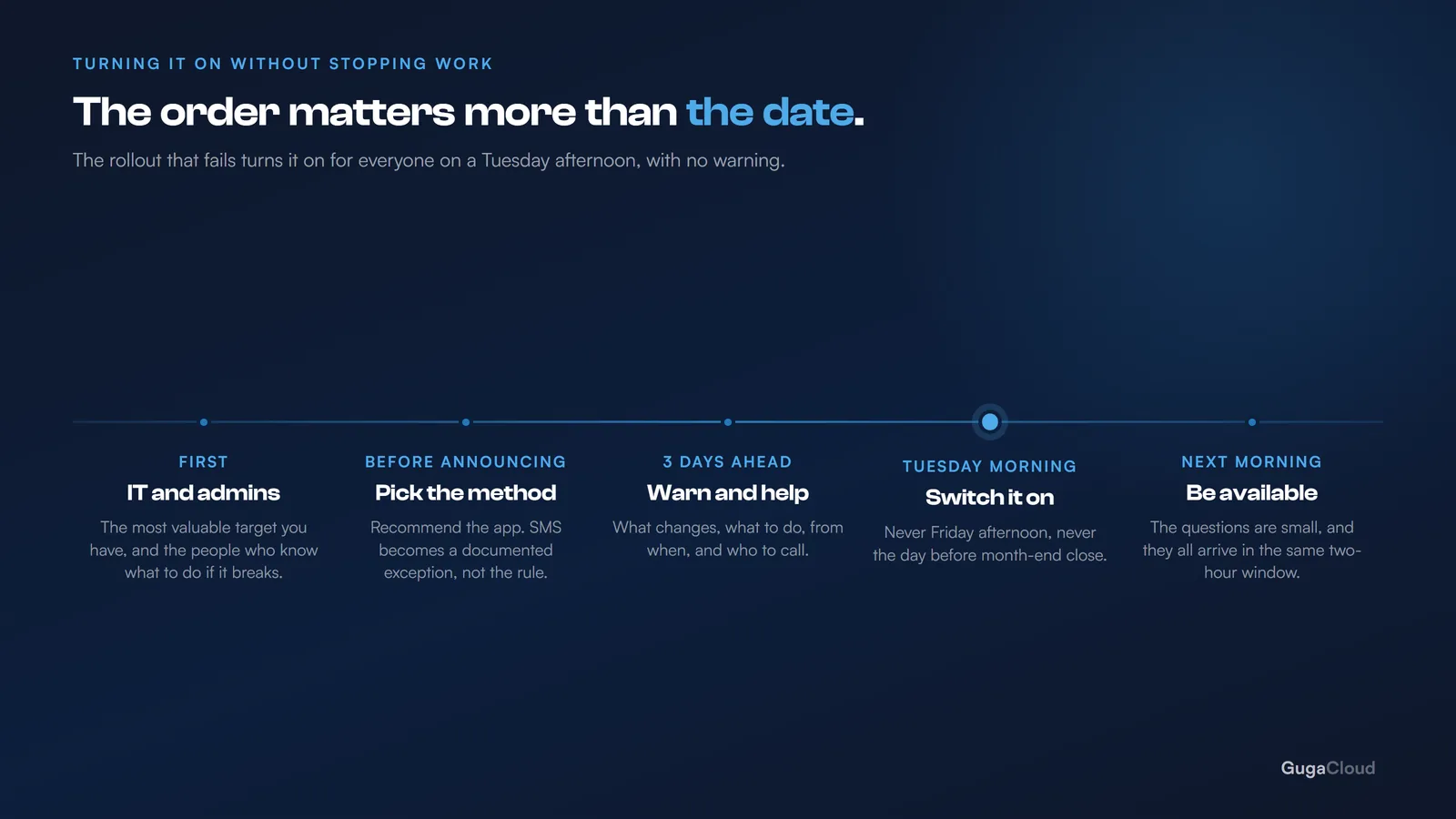
The rollout that does not stop the company
A rollout that goes wrong always has the same shape. It gets switched on for everybody on a Tuesday afternoon with no warning. By the next morning half the team cannot get into email on their phones, nobody knows why, and whoever did it spends two days apologising instead of finishing the job.
The approach that works has four steps.
1. Start with IT and the administrators
An administrator account is the most valuable target in the tenant — it is the one that can create users, read mailboxes and change settings. Administrators are also the group that understands what is happening if something breaks. Turn it on for the people who run the environment first, and live with it for a few days.
That step has a second benefit. You find the real problems — the device that will not enroll, the shared account nobody admitted to — while the only people affected are the ones with the patience to debug them.
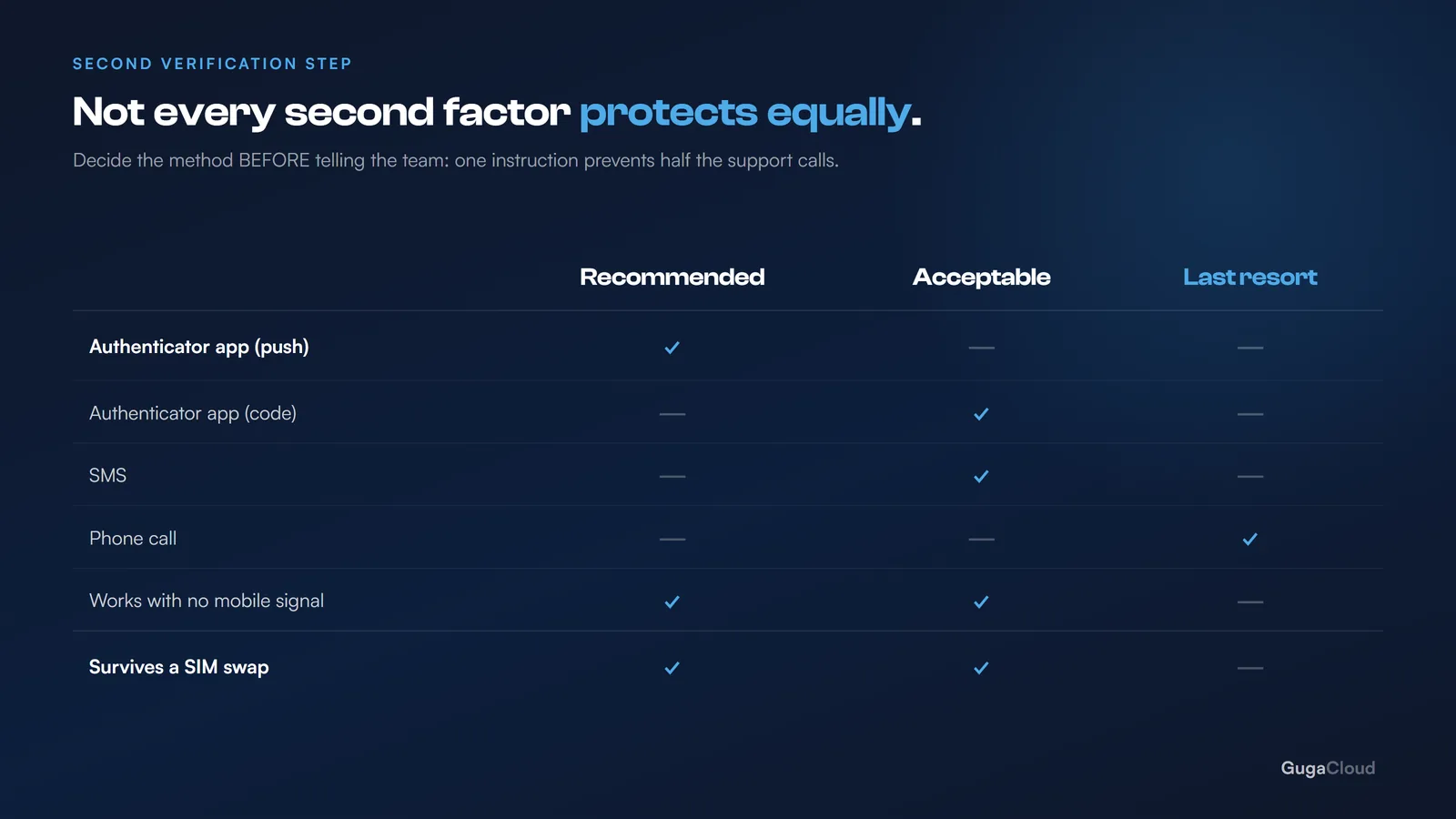
2. Decide on the method before you announce anything
The options, best to worst:
| Method | Note |
|---|---|
| Authenticator app (push notification) | The best option: fast, works without mobile signal |
| Authenticator app (code) | A good fallback when the notification does not arrive |
| SMS | It works, but it is the weakest — vulnerable to SIM swapping |
| Phone call | Last resort, for people without a smartphone |
Recommend the app and keep SMS as the exception. SMS is still far better than nothing, but a code sent to a number can be intercepted by somebody who convinces a mobile operator to move that number to a new SIM, and it fails exactly when people travel.
Deciding this before you announce anything removes half the support tickets, because the instruction becomes one instruction instead of “pick whichever you like”.
3. Give notice, and be specific
A short message, three days ahead, saying:
- what is changing, in one sentence;
- what the person has to do (install the app, enroll);
- from what date;
- who to call if they get stuck.
Offer to help with enrollment rather than waiting to be asked. Fifteen minutes next to somebody at their desk settles what would otherwise turn into an hour-long support call on the worst possible morning.
4. Pick a sensible date and be there
Do not switch it on late on a Friday, and not the day before month-end close or any other deadline the business cares about. Tuesday morning works well: the week has started, people are at their desks rather than in transit, and there are working hours left to fix whatever surfaces.
And have somebody genuinely available the following morning — not on call in theory, available in practice. The questions are small, each takes two minutes, and they all arrive at once.
The three problems that always come up
The old phone belonging to the person who will not install anything. There is always one. Deal with it by granting SMS as a documented exception, not by exempting the account from MFA. Today’s exemption is the compromised account three months from now, and it is always the exempted account.
The printer, the ERP and the system that “does not support MFA”. That is not a case for exempting MFA: it is a sign those systems should not be using a person’s user account at all. They need a service account with its own authentication, scoped to what they actually do. If somebody proposes turning the second step off for the account the printer signs in with, the problem is in the design, not in MFA.
The person who changes phones and loses access. It will happen, and usually while they are away from the office. Make sure more than one administrator can reset the method on an account, and that each person has a second method registered. One administrator who can do resets is a single point of failure wearing a helpful disguise.
When it is NOT worth complicating
Worth saying plainly, because some people turn this into a three-month project:
- If the company is ten people in one office, do not design elaborate Conditional Access policies. Turn on security defaults and get on with your life.
- If you have no MFA at all today, do not wait for the perfect plan. Switching it on for everybody today beats switching it on for the ideal group in two months.
- If the budget does not stretch to Premium, do not treat that as a blocker. Security defaults exist on the cheapest plan and they cover the part that matters most.
The question for today
If our finance manager’s password leaked right now, on some random website, what would stop somebody from getting into their email?
If the answer is “nothing”, there is no higher priority in your environment — and the fix is already included in what you are paying for.