
If you still have Windows 10 machines in the business, there is a date coming up that changes what your decision costs: 13 October 2026. That is when Year 1 of the paid security update programme ends.
This is no longer the article about “Windows 10 is going away”. It went. Support ended on 14 October 2025. This is the article about what to do now that a year has passed, and about why the bill gets more expensive with every month of delay.
What has already happened
Since October 2025, Windows 10 machines no longer receive, through the normal channel:
- security fixes;
- bug fixes;
- technical support from Microsoft.
The computer still turns on and still does the work. That is exactly what makes the situation dangerous: nothing breaks visibly. There is no warning screen, no refusal to boot, no obvious moment at which something changed. The machine quietly accumulates known flaws with no fix available, and the first evidence that there was a problem at all is usually the incident itself.
It is the same shape as an expired insurance policy. Nothing is different on the day it lapses. The difference shows up only once something goes wrong.
The paid programme: how it actually works
Microsoft created ESU (Extended Security Updates), an annual subscription that gives back only the critical and important fixes. The official programme documentation sets out the rules in full; three of them are the ones that decide your bill.
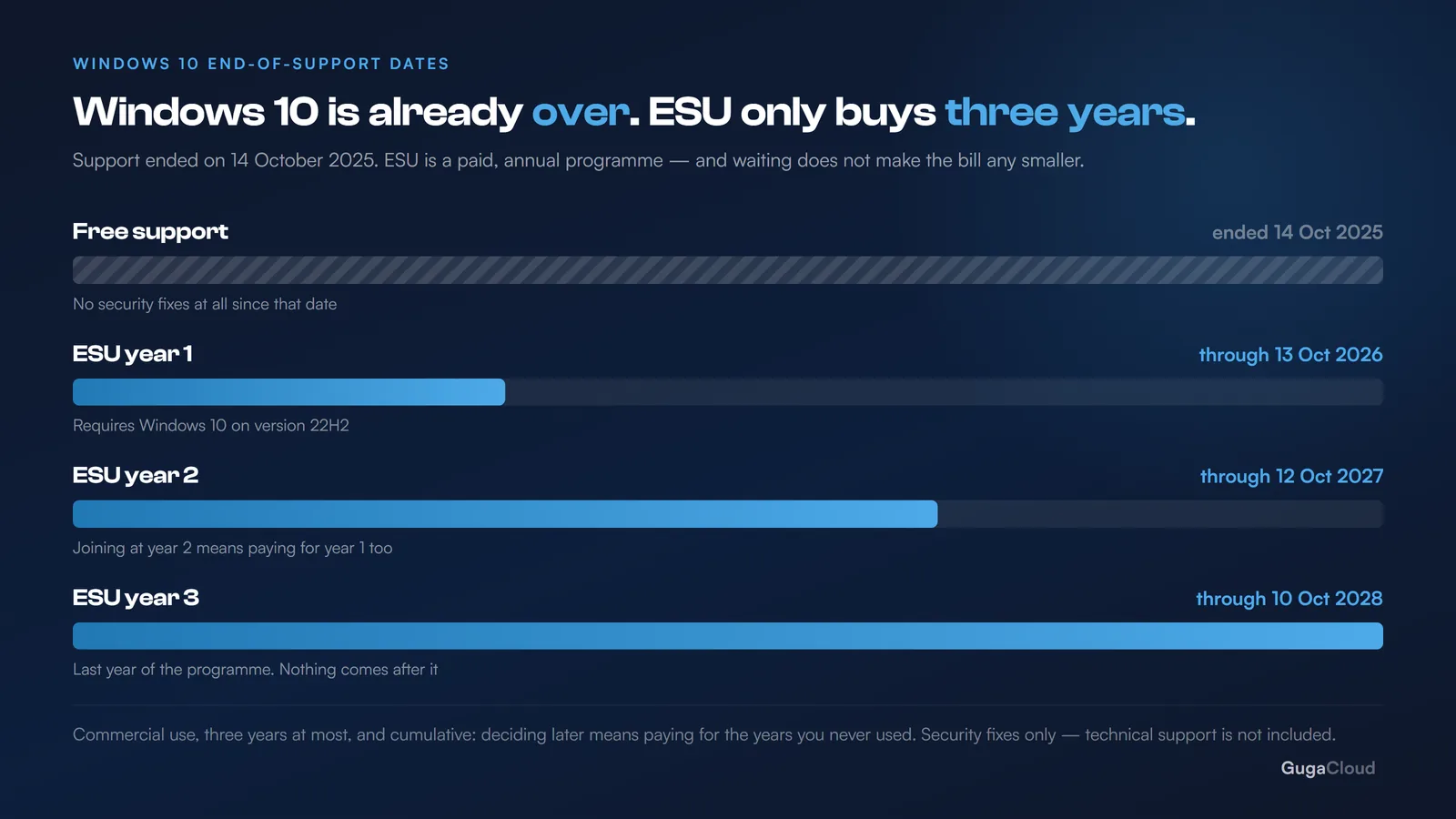
1. It has a hard end date, and that date is 2028. The programme runs for a maximum of three years for business customers:
| Ends on | |
|---|---|
| Year 1 | 13 October 2026 |
| Year 2 | 12 October 2027 |
| Year 3 | 10 October 2028 |
After that there is no further extension. It is a bridge, not a destination, and the far end of the bridge is already built.
2. It is cumulative — and this is the trap. You cannot buy Year 2 on its own. If you decide to join the programme next year, you pay for Year 1 retroactively as well. Each year of delay does not defer the cost; it stacks it. Waiting buys you nothing, which is the opposite of how most licensing decisions behave.
3. It does not include technical support. ESU delivers security updates and nothing else. Anything that is not a security problem gets no fix at all — no bug fixes, no compatibility work, no help desk. Support exists only under a separate contract.
One further condition catches people out: ESU covers version 22H2 only, and only the Enterprise, Education and Pro editions in commercial use. Machines sitting on an older build are not eligible as they are. They have to be updated to 22H2 first, or they are simply left out of the programme — which is worth knowing before you budget for a machine that cannot be enrolled anyway.
The question is not “is ESU worth it?”. It is “how much longer do I actually need these machines?” — because the programme ends in 2028 either way.
The four real ways out
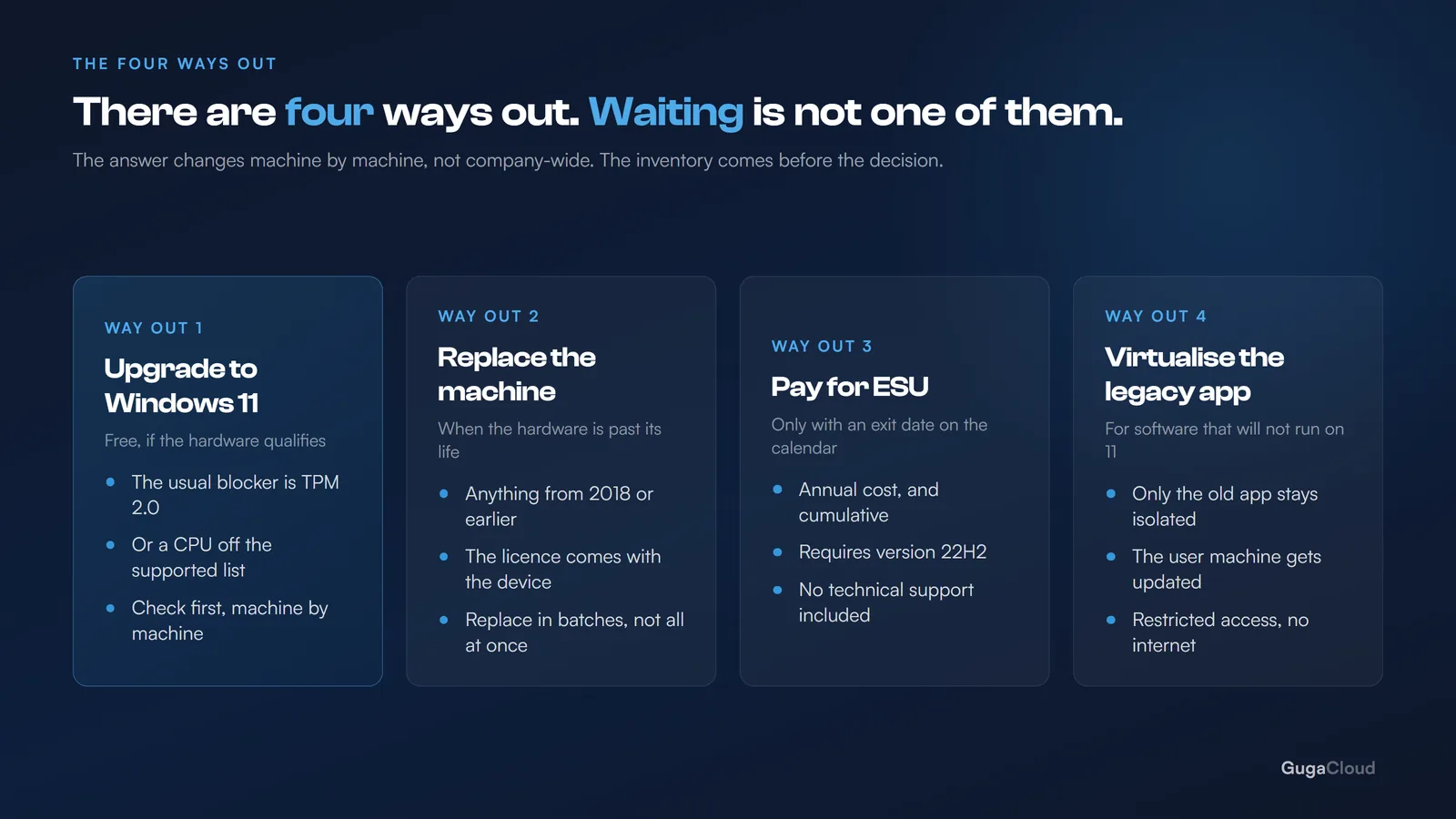
1. Upgrade to Windows 11
This is the right path for most of the fleet. It is free, provided the hardware qualifies.
The blocker is usually TPM 2.0 and the list of supported processors. Before you decide anything else, run an inventory: how many machines meet the requirement and how many do not. That one number decides everything that follows, and almost no company has it to hand when the conversation starts.
In plenty of cases, machines that look like failures simply have TPM switched off in the BIOS. It is a setting, not a missing chip. Worth checking before you write off the hardware.
2. Replace the hardware
For whatever genuinely does not meet the requirement. Expensive up front — but if the machine dates from 2018 or earlier, you are probably already paying for it in other ways: slowness, support tickets, a disk on its way out, an afternoon lost to a reinstall.
Compare honestly. Put the cost of the new machine against three years of ESU plus the time lost to a machine nobody enjoys using. The arithmetic flips sooner than most people expect, and it flips faster the longer the delay.
3. Pay for ESU, with an exit date on the calendar
This is legitimate when there is a concrete reason: a system that only runs on Windows 10, a piece of equipment whose driver does not exist for 11, a contract that expires in two years and takes the machine with it.
There is one rule here, and it is short: if you go into ESU, go in with an exit date. A transition programme without a leaving date becomes permanent residence. And in 2028 the door closes on its own, whether or not anyone has planned for it.
4. Virtualise
If the problem is one specific legacy system, the answer is sometimes not to hold an entire computer back for it. Isolate that system in a virtual machine and free the physical fleet to move to Windows 11.
It is more work than doing nothing and less work than keeping a whole generation of hardware frozen in place for the sake of one application.
When ESU is NOT worth it
Worth saying plainly, because whoever sells the licence rarely does:
- If the machines meet the Windows 11 requirement. Paying for extended security on hardware that could have been upgraded for free is pure waste. There is no scenario in which this is the better deal.
- If the fleet is small and old. Across five or six machines from 2017, three years of ESU added together comes close to the price of new hardware — and you arrive in 2028 holding exactly the same problem, having spent the money twice.
- If nobody is going to use the time you bought. ESU is a deadline extension, nothing more. A deadline with no plan behind it is just expensive delay, and the delay has a bill attached each year.
What to do this week
- Count the machines. How many run Windows 10, on which version, and which of them meet the Windows 11 requirement. Without that number, every decision after this point is a guess dressed up as a plan.
- Separate the ones with a real reason to stay. Legacy system, driver, contract. In practice this list is usually far shorter than the first impression suggests — often two or three machines rather than the whole floor.
- Decide before the 13th, if you are going into ESU at all. After that date the bill becomes cumulative and the cheapest version of this decision is gone.
- Set the exit date. Even if the plan is to pay, write down when the fleet will be on Windows 11 and who owns that date.
And make the inventory count twice while you are at it. An old machine is usually also a machine with no disk encryption, no central management and no update policy. If you are going to look at the whole fleet anyway, it is worth sorting those out in the same pass — that is the difference between the Microsoft 365 plans, as we have written about here.
The question to take to your IT people today: how many of our machines meet the Windows 11 requirement, and how many do not? If nobody can answer that off the top of their head, that is the first job, and it is a morning’s work rather than a project.